Engineering Versions
Keep offline project checkpoints and compare alternatives without turning history into authority.
Read as MarkdownWhat Versions stores
Engineering Versions is local project history. It is available without an AI subscription or network connection; managed AI usage and billing are separate. Saved revisions are immutable snapshots of project inputs. A revision is not a simulation result, safety approval or proof that it is still the current project.
Save a milestone or alternative
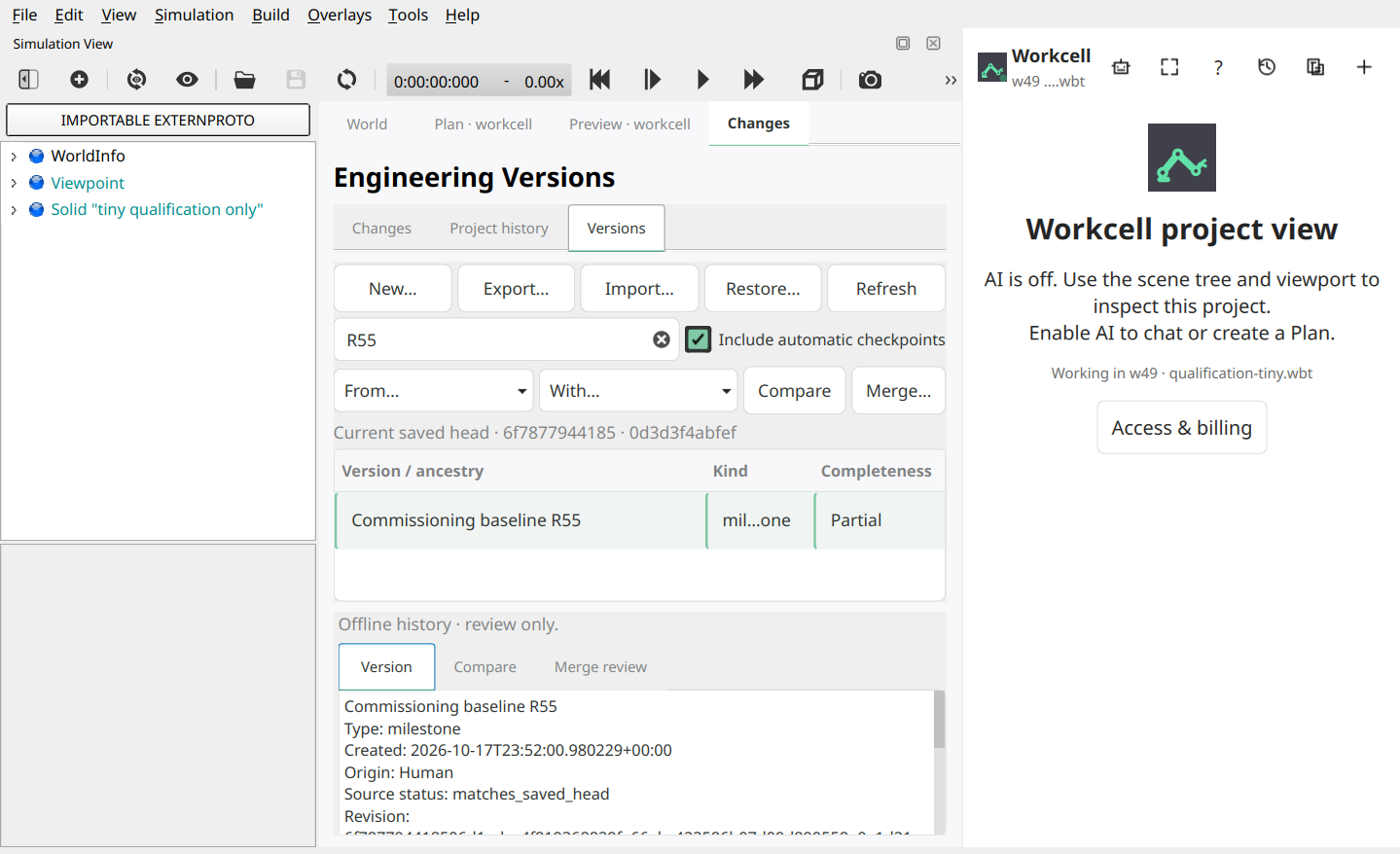
Select Project versions (the stacked-page icon) in the assistant header, even when AI is off. This opens local project history without starting a conversation. Choose New… to save a named Milestone for a point you intend to keep, or an Alternative for a separate direction. Check the displayed project head before creating it. The label helps you find the snapshot; it does not alter its content or authorize Apply. Automatic checkpoints remain identified as automatic rather than being presented as named milestones.
Compare before choosing
Choose two saved revisions and open Compare. Workcell identifies their common base when available and reports file changes separately from supported engineering-property values, text and opaque binary assets. It shows recorded values without inferring missing units; unknown or unsupported content stays opaque rather than being guessed or silently normalized. Resolve conflicts explicitly before preparing a merge proposal.
Prepare, inspect and restore
For a selective merge, review each proposed path and its source side, then choose Prepare merge. This creates a new immutable proposal; it does not edit the canonical project. To return to an older revision, choose Prepare restore. The existing review flow shows the exact candidate and requires a separate explicit Apply. Later versions remain in history.
Export and import safely
Use Export on a selected revision to create a portable history archive, then keep it with your project backup. Import reads a chosen archive as an untrusted proposal: it validates the archive and does not extract files into the open project. Inspect the imported revision before comparing or preparing a merge. If the archive is rejected or storage is full, keep the original project and retry only after checking the specific error; never bypass path, hash or size checks.
Unsaved edits and active work
Save native project edits before creating a checkpoint, merge proposal or import. Read-only listing, comparison and export do not change project files. If a conversation or project is busy, wait for its exact run to finish before requesting a new proposal. Switching Versions views does not switch projects or restore an old chat, draft, approval or transaction authority.
Expected result and recovery
A completed operation identifies its exact revision and source head. If Workcell reports a stale head, changed project, incomplete history or unavailable storage, stop and refresh the Versions view. Do not repeat a write after an uncertain acknowledgement until you reconcile the returned operation identity. For app-level problems, see Troubleshooting and include only a redacted error in a private support request.